No matter how poor is the information, presenting it in an interesting manner will still get you some points. If your friend has better vacation pictures to show, you can still capture the audience by showing them a neat presentation. That's where DVD Photo Slideshow comes in. The name should be self explaining, but if you're a bit slow, it lets you create neat slideshows with tons of transition effects, themes, menus, and more.
If your Internet connection is sluggish, you should start downloading before going on vacation and by the time you get back, it should be done. The installation package is about 28 MB large, but at least the installation itself goes without a hitch. You won't need to install anything else or restart your PC.
Although it looks complex, you don't need to be an advanced user in order to create a slideshow with this program. The interface works like a wizard with main buttons arranged in the order of the steps you need to take. First is the photo organizer where you browse through your folders and add images in the designated area. Here you can also choose transition effects and album themes. There's no advanced editing required here. Everything is neatly organized so that all you have to do is to select or click and drag. The second main button lets you choose menus for the slideshow. Again, it only implies selecting a menu and a few extra, but easy options. Finally you can burn your slideshow to a DVD. If DVD Photo Slideshow looks and feels too simple, the range of output formats helps you a lot in this regard. You can burn it as a DVD video disc, Blu-ray, MPEG-4, and many more. You can even export it in a format for your iPad or other iDevices.
Showing posts with label DVD slideshow. Show all posts
Showing posts with label DVD slideshow. Show all posts
Thursday, March 21, 2013


Wednesday, July 11, 2012
Create Everlasting Wedding Slideshow with DVD Photo Slideshow
My fiancée and I have decided to host our wedding ceremony in 2 months. As the exciting day approaches, we do anticipate a remarkable wedding, with best wishes from our families and friends and sincere marriage vow from the better half. We have known each other for more than 4 years and gone through too much in the meanwhile. We have also reached a consensus that the wonderful memories should be recorded in remembrance of our everlasting love.
So what is the best way to get our good old days recorded? As a digital photography fan, the first idea that came to my mind was to burn all our photos into a DVD disc. I then started to collect and sort all our photos and saved them to a folder in my computer. All of them took up to 2GB of my hard drive space. I inserted a DVD disc into my computer and began to burn the photos with the built-in DVD burner in my Windows 7 system. The burning process went very smoothly, yet the result was not that satisfying as expected. This idea failed and I had to give it up.
Actually, what I had expected was a DVD slideshow with all our photos. When playing the DVD on TV with a DVD player, what needed to be shown in front of us was a dynamic photo slide show with theme songs and sort of decoration effects. At this point, the DVD created using the built-in DVD burner in my computer was just too plain and monotone.
After doing a search for DVD slideshow software on Google for some time, I finally got the software I really needed. It was DVD Photo Slideshow developed by Socusoft. I felt so happy as this piece of slideshow software happened to have wedding themes. What's more, it let me put photos from different folders into different albums, in which way I could better organize our photos. For example, I could create an album with all my fiancée's photos, another album with all my photos, and a third album with all our photos. Also, I could make albums by genre of place, year, festival, etc. In total, there were 76 themes that could be used to decorate the albums. Several of them could be applied to a wedding slideshow. Since I was going to make a DVD slideshow, I certainly needed to choose a DVD menu that best fitted the wedding slide show. And there were also wedding menu templates in DVD Photo Slideshow. To be honest, the cool album themes and DVD menu templates were the primary reason why I chose DVD Photo Slideshow among a lot of other similar program.
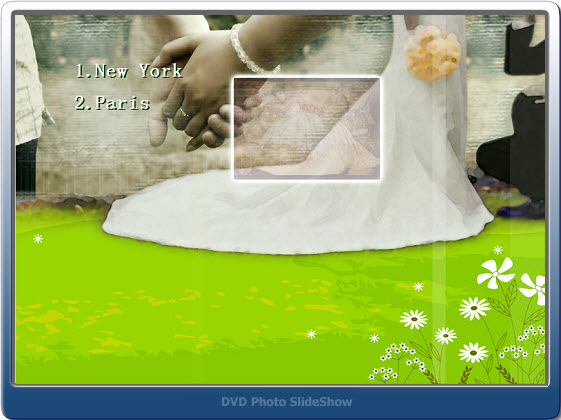
Like other DVD slideshow programs, DVD Photo Slideshow can create a slideshow with background music, transitions, Pan&Zoom, art clips, text, subtitles and more. I'm not going to elaborate them here. The last point is that DVD Photo Slideshow also lets users save the slideshow project as a video files and it offers optimized presets for popular portable devices such as iPad, iPhone, PSP, Zune, Creative Zen, Mobile Phone and more. As far as I am concerned, I am going to output all my albums in DVD Photo Slideshow to video files for viewing on my newly purchased Galaxy Tab. Hope the output quality won't let me down.
At last, I'd like to say when I presented the slideshow DVD to my fiancée; she was very happy and truly touched by me. All my efforts paid off.
So what is the best way to get our good old days recorded? As a digital photography fan, the first idea that came to my mind was to burn all our photos into a DVD disc. I then started to collect and sort all our photos and saved them to a folder in my computer. All of them took up to 2GB of my hard drive space. I inserted a DVD disc into my computer and began to burn the photos with the built-in DVD burner in my Windows 7 system. The burning process went very smoothly, yet the result was not that satisfying as expected. This idea failed and I had to give it up.
Actually, what I had expected was a DVD slideshow with all our photos. When playing the DVD on TV with a DVD player, what needed to be shown in front of us was a dynamic photo slide show with theme songs and sort of decoration effects. At this point, the DVD created using the built-in DVD burner in my computer was just too plain and monotone.
After doing a search for DVD slideshow software on Google for some time, I finally got the software I really needed. It was DVD Photo Slideshow developed by Socusoft. I felt so happy as this piece of slideshow software happened to have wedding themes. What's more, it let me put photos from different folders into different albums, in which way I could better organize our photos. For example, I could create an album with all my fiancée's photos, another album with all my photos, and a third album with all our photos. Also, I could make albums by genre of place, year, festival, etc. In total, there were 76 themes that could be used to decorate the albums. Several of them could be applied to a wedding slideshow. Since I was going to make a DVD slideshow, I certainly needed to choose a DVD menu that best fitted the wedding slide show. And there were also wedding menu templates in DVD Photo Slideshow. To be honest, the cool album themes and DVD menu templates were the primary reason why I chose DVD Photo Slideshow among a lot of other similar program.
Like other DVD slideshow programs, DVD Photo Slideshow can create a slideshow with background music, transitions, Pan&Zoom, art clips, text, subtitles and more. I'm not going to elaborate them here. The last point is that DVD Photo Slideshow also lets users save the slideshow project as a video files and it offers optimized presets for popular portable devices such as iPad, iPhone, PSP, Zune, Creative Zen, Mobile Phone and more. As far as I am concerned, I am going to output all my albums in DVD Photo Slideshow to video files for viewing on my newly purchased Galaxy Tab. Hope the output quality won't let me down.
At last, I'd like to say when I presented the slideshow DVD to my fiancée; she was very happy and truly touched by me. All my efforts paid off.
Wednesday, June 15, 2011
How to Create A Happy Father's Day DVD Photo Slideshow
Photo slideshows are suitable to commemorate any special occasion in your life. Father's Day is among one of these occasions that you should never forget. Sending your father a gift is great, while creating a photo DVD slideshow for him may make a world of difference. If you live far away from your father, it sounds a creative idea to create a DVD slideshow of your father's photos and then mail the DVD disc to him as a Happy Father's Day gift. It is very easy to create a Father's Day photo slideshow with DVD Photo Slideshow Software. Now let's take a look at how it performs:
Step 1. Organize Father's Photos
Click the Organize Photos tab in Photo DVD Slideshow to create one or more albums, select your father's photos from a folder in your computer hard drive and add them to the album.

In the sub-tab of Album Photo, you can add or remove photos, rotate photos, set album thumbnail, arrange the order of the photos, etc.
Switch to the Transition & Music tab, and you can set background music (your father's favorite songs), apply transition effect, specify transition duration, photo duration, randomize photo transitions, etc.
In the Album Theme tab, there are lots of album themes available for you to choose from. You may also add separate photos to the beginning and end of the album, and edit album beginning title and ending title, such as text, effect, duration, background color, etc.
Also you are allowed to preview the whole album before the conversion by clicking the Album Preview button.
Step 2. Choose DVD Menus
Click the Choose Menus tab in the interface of DVD Photo Slideshow to choose a menu template for the Father's Day DVD slideshow. You can also specify the background music and background image, set font style, size, color, etc to customize the menu template.

Step 3. Burn Photo Slideshows to DVD
Click the Burn Disc tab at the top menu to go to the burning window. Then click the Output Format drop-down menu and choose DVD Video Disc. Then click the "Create Now" button to start burning father's photo slideshows to DVD disc and creating a Happy Father's Day DVD photo slideshow.
Step 1. Organize Father's Photos
Click the Organize Photos tab in Photo DVD Slideshow to create one or more albums, select your father's photos from a folder in your computer hard drive and add them to the album.
In the sub-tab of Album Photo, you can add or remove photos, rotate photos, set album thumbnail, arrange the order of the photos, etc.
Switch to the Transition & Music tab, and you can set background music (your father's favorite songs), apply transition effect, specify transition duration, photo duration, randomize photo transitions, etc.
In the Album Theme tab, there are lots of album themes available for you to choose from. You may also add separate photos to the beginning and end of the album, and edit album beginning title and ending title, such as text, effect, duration, background color, etc.
Also you are allowed to preview the whole album before the conversion by clicking the Album Preview button.
Step 2. Choose DVD Menus
Click the Choose Menus tab in the interface of DVD Photo Slideshow to choose a menu template for the Father's Day DVD slideshow. You can also specify the background music and background image, set font style, size, color, etc to customize the menu template.
Step 3. Burn Photo Slideshows to DVD
Click the Burn Disc tab at the top menu to go to the burning window. Then click the Output Format drop-down menu and choose DVD Video Disc. Then click the "Create Now" button to start burning father's photo slideshows to DVD disc and creating a Happy Father's Day DVD photo slideshow.
Subscribe to:
Posts (Atom)